Azure Container Registry (ACR)
🔐 Setup Required
The acr registry module lets you authenticate against Azure Container Registry (ACR) instances.
⚙️ Configuration Variables
WUD_REGISTRY_ACR_{registry_name}_CLIENTID
Requiredstring
Azure Service Principal Application (Client) ID
WUD_REGISTRY_ACR_{registry_name}_CLIENTSECRET
Requiredstring
Azure Service Principal Client Secret
WUD_REGISTRY_ACR_{registry_name}_NAME
Optionalstringdefault: {registry_name}.azurecr.io
Registry domain name (e.g. myregistry.azurecr.io)
Required Permissions
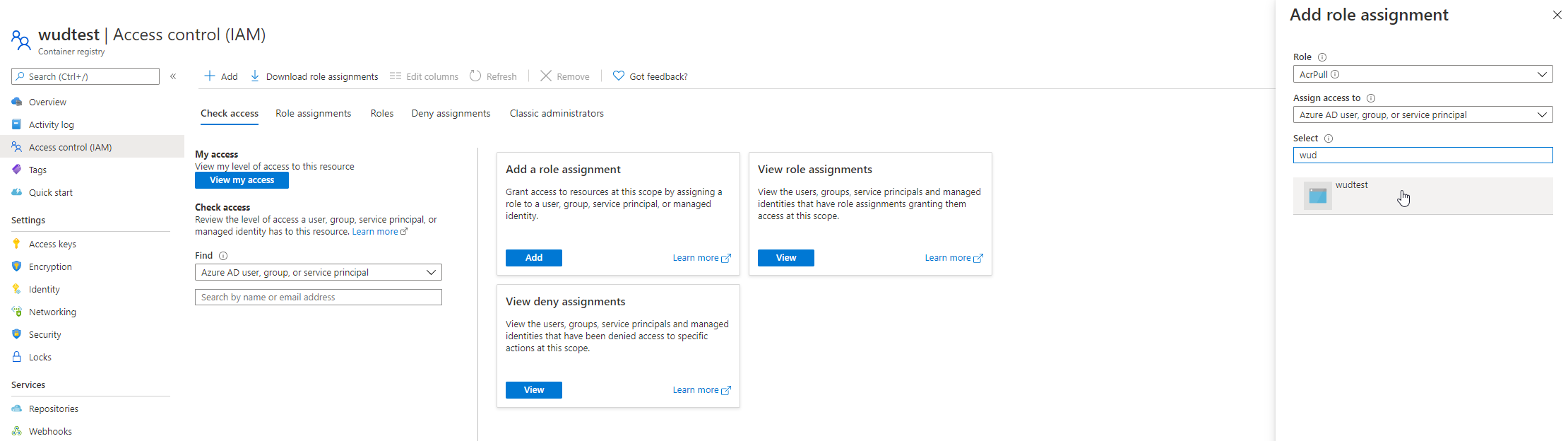
Ensure your Azure Service Principal is assigned the AcrPull role on the target Container Registry. See Azure Service Principal Authentication.
🚀 Examples
Authenticate with an Azure Container Registry
- Docker Compose
- Docker
services:
  whatsupdocker:
    image: getwud/wud
    environment:
      - WUD_REGISTRY_ACR_MYREGISTRY_CLIENTID=00000000-0000-0000-0000-000000000000
      - WUD_REGISTRY_ACR_MYREGISTRY_CLIENTSECRET=xxxxxxxxxxxxxxxxxxxxxxxxxxxxxxxxxx
docker run \
  -e WUD_REGISTRY_ACR_MYREGISTRY_CLIENTID="00000000-0000-0000-0000-000000000000" \
  -e WUD_REGISTRY_ACR_MYREGISTRY_CLIENTSECRET="xxxxxxxxxxxxxxxxxxxxxxxxxxxxxxxxxx" \
  getwud/wud
📖 Setup Guide: Creating Azure Service Principal Credentials
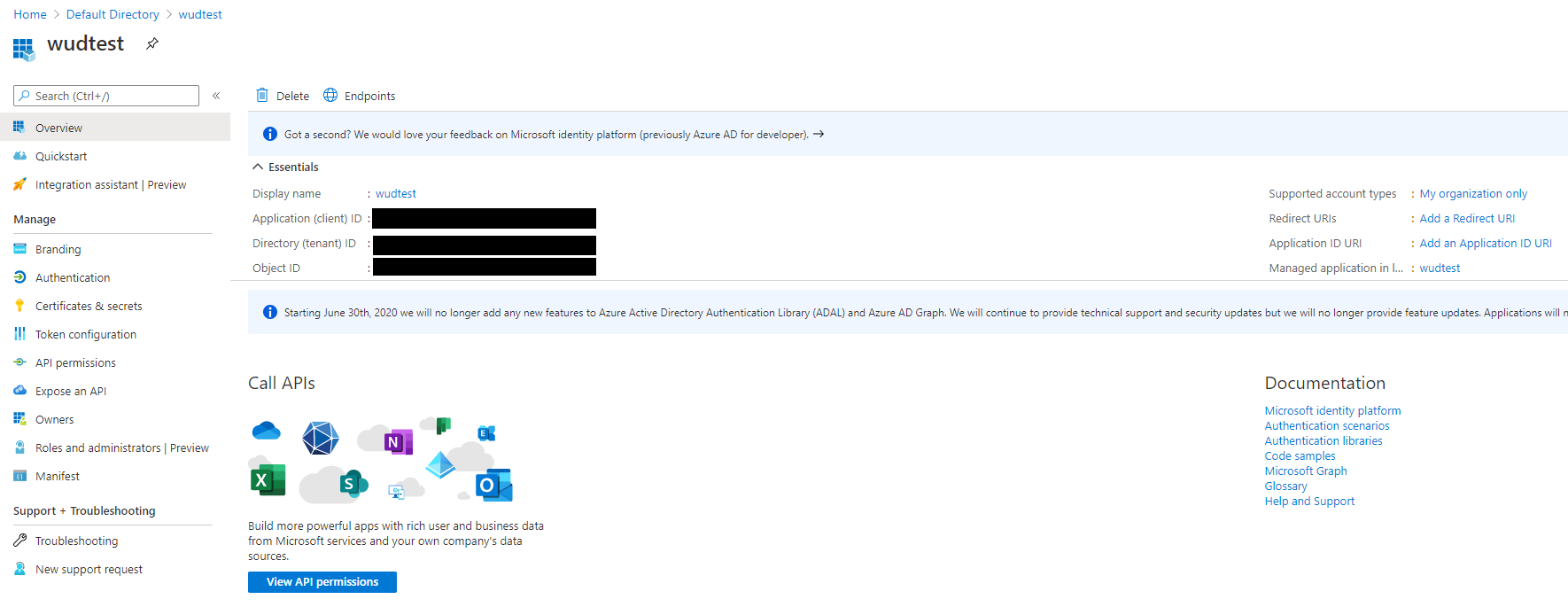
1. Create a Service Principal
Follow the official Azure guide to register an application and generate a client secret in Microsoft Entra ID.
2. Open Access Control (IAM)
Navigate to your Container Registry in the Azure Portal and select Access Control (IAM).
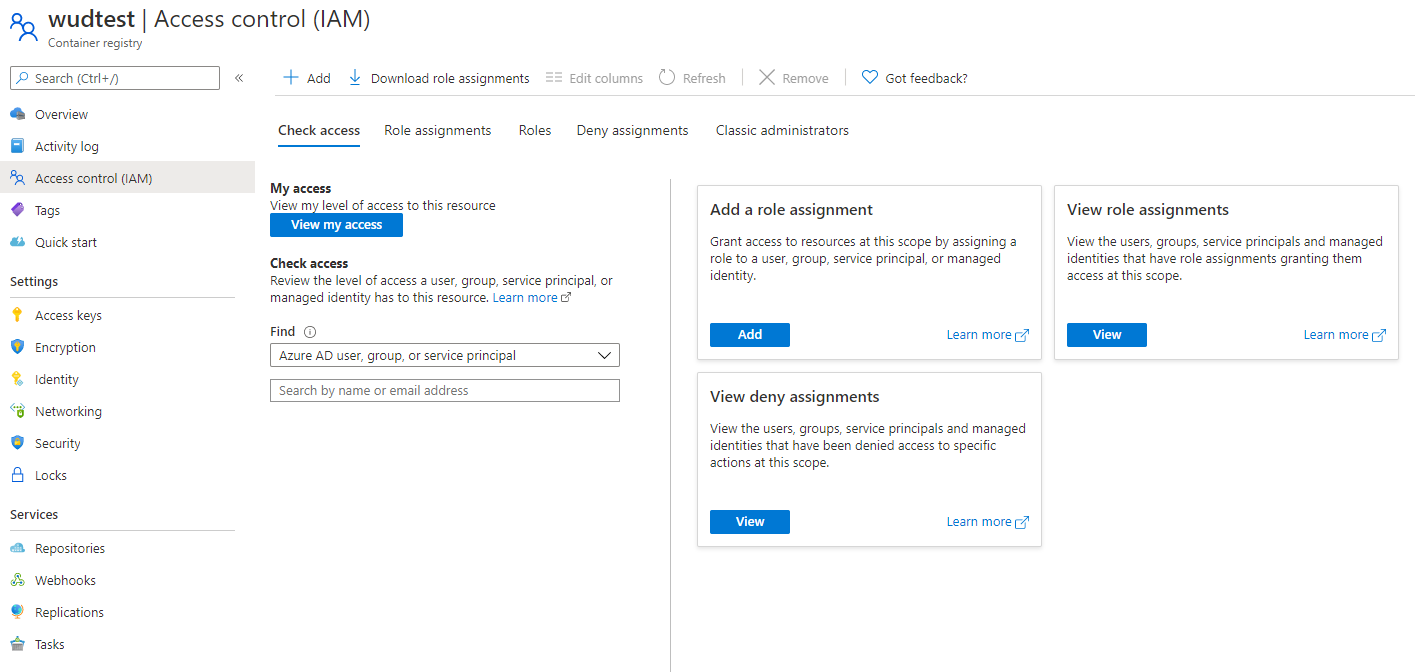
3. Assign the AcrPull Role
Click Add role assignment, select the AcrPull role, and assign it to your newly created Service Principal.